
Vite React + Tailwind CSS 4.0 Setup
1. Vite React + Tailwind CSS 4.0 Setup
npm install vite@6.2.5 –save-dev
Step 1: C:\project-folder>npm create vite@latest or
Step 2: Enter Project Name: CRM-Dashboard-01
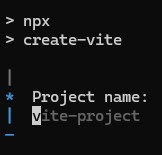
Step 3: Select React framework
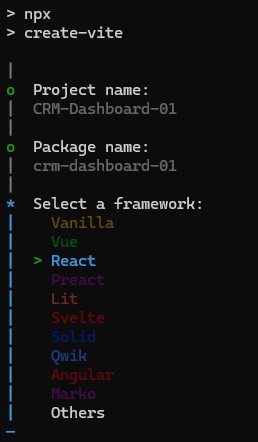
Step 4: Select Javascript
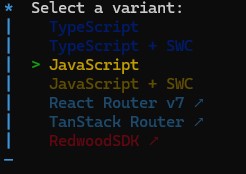
Step 5: C:\project-folder>cd CRM-Dashboard-01
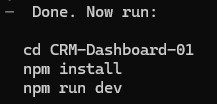
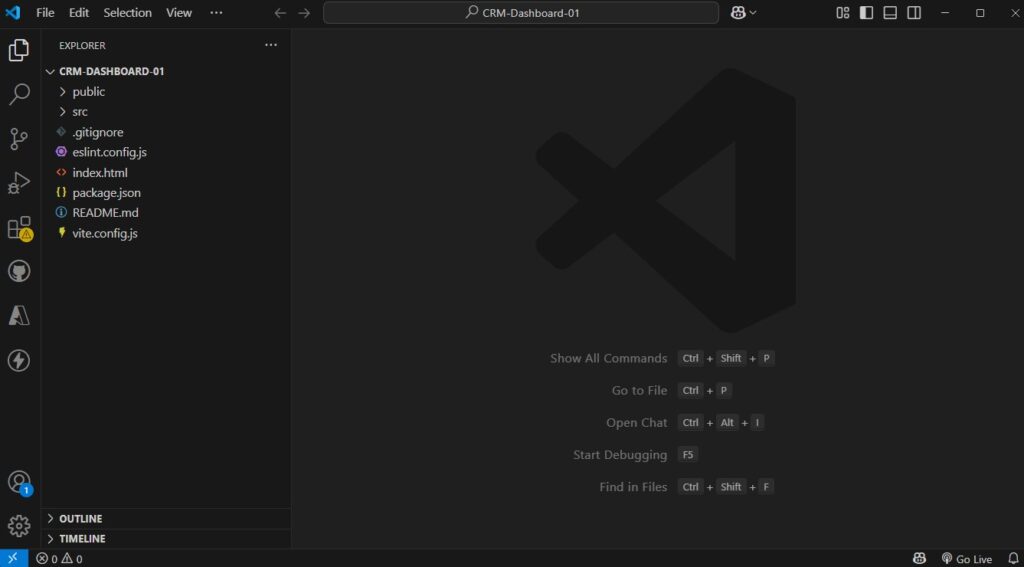
Step 6: Open Project in VS Code -> ‘code .’
C:\project-folder>CRM-Dashboard-01> code .
The project has been successfully opened in Visual Studio Code, as shown in the screenshot below.
Step 7. Next, open the terminal in VS Code using the menu: Terminal > New Terminal.
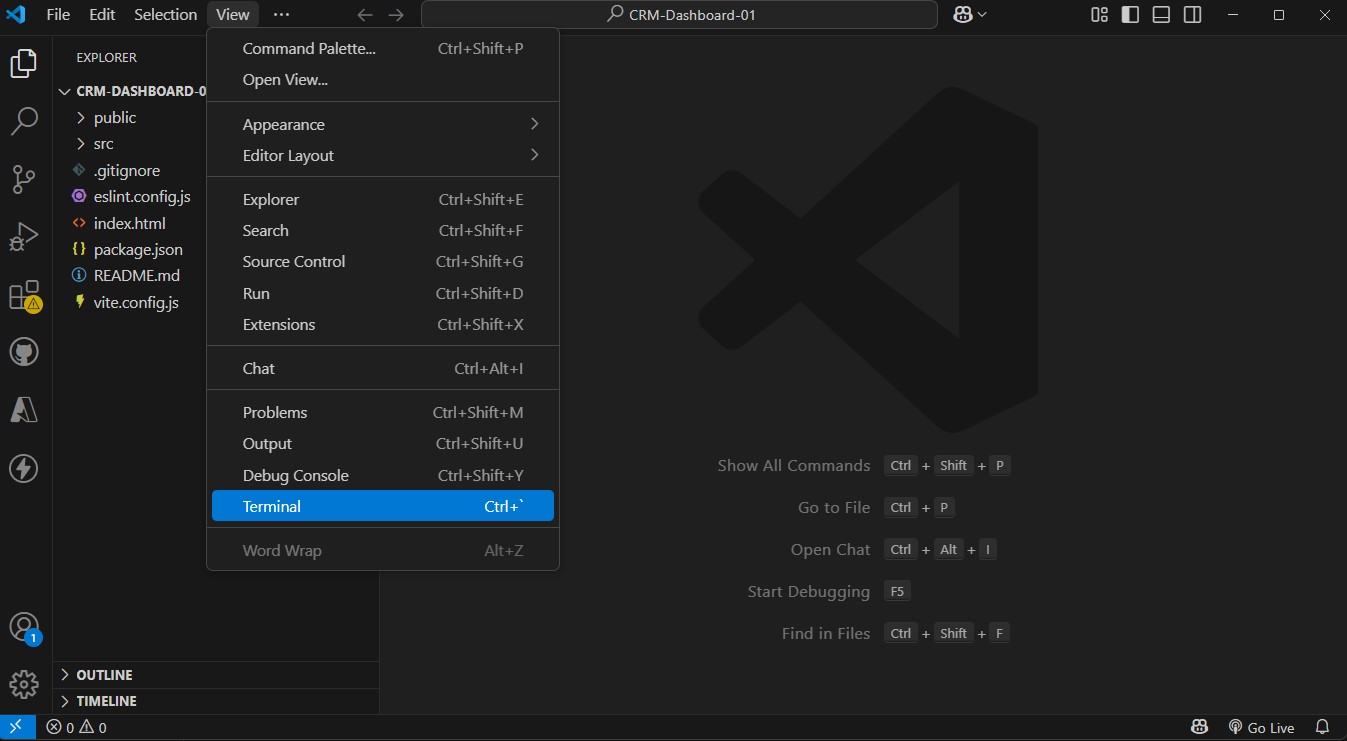
Step 8: Install Project Dependencies
C:\project-folder>CRM-Dashboard-01>npm install

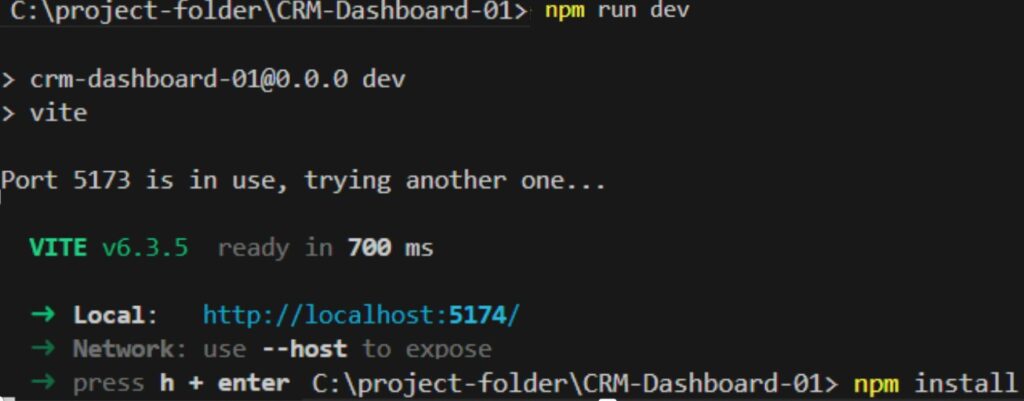
Step 9: Start the Development Server
C:\project-folder>CRM-Dashboard-01>npm run dev
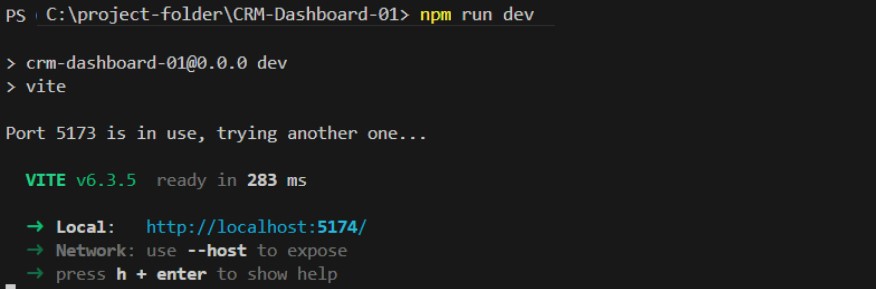
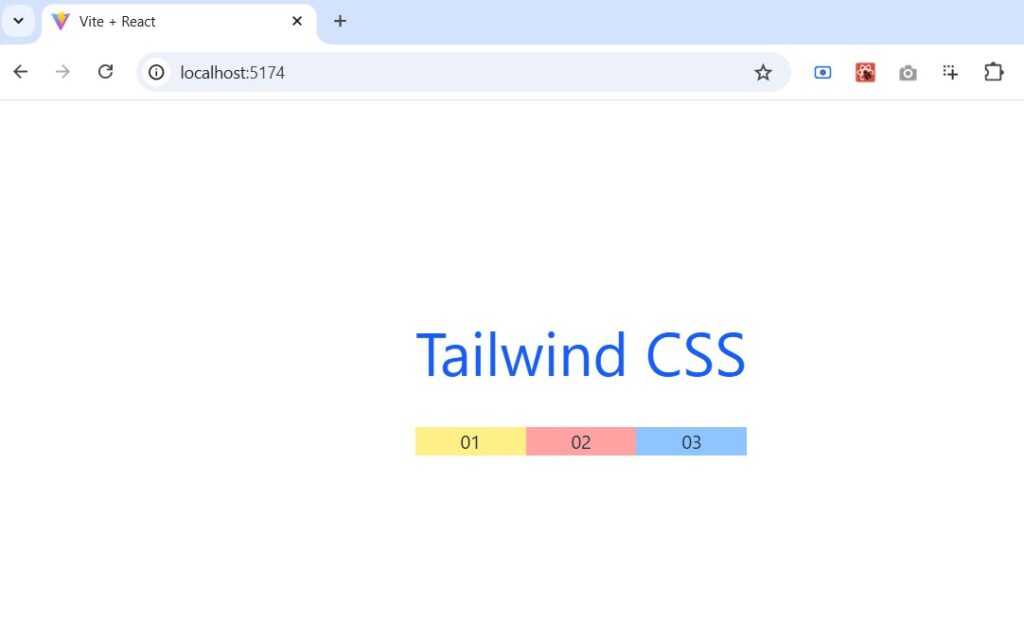
Step 10: “Open your browser (e.g., Chrome) and visit the following URL to view the project:
http://localhost:5174“
The product is running successfully, as shown in the screenshot below.

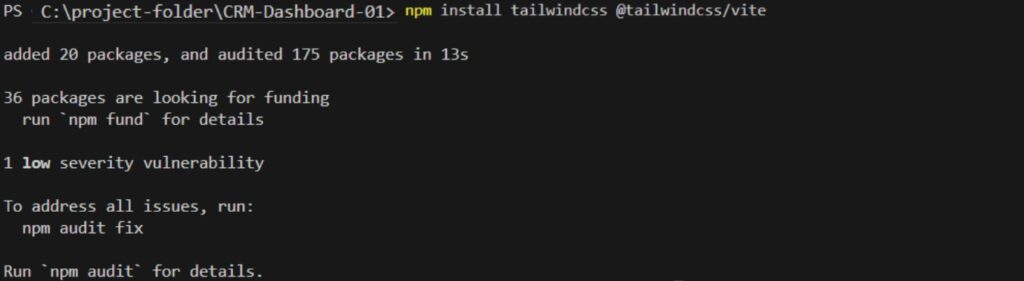
Step 11: Install Tailwind CSS
C:\project-folder>CRM-Dashboard-01>npm install tailwindcss @tailwindcss/vite
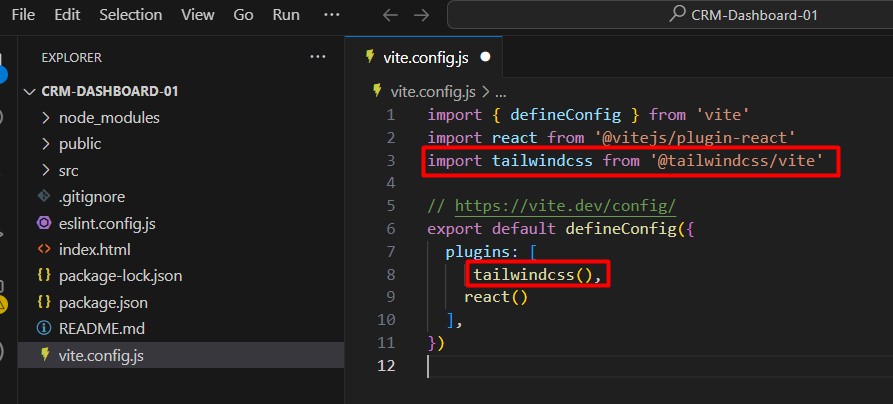
Step 12: Open the vite.config.js file in your project
import tailwindcss from ‘@tailwindcss/vite’ // 👈 Import Tailwind plugin
plugins: [
tailwindcss() // 👈 Use the Tailwind plugin
],
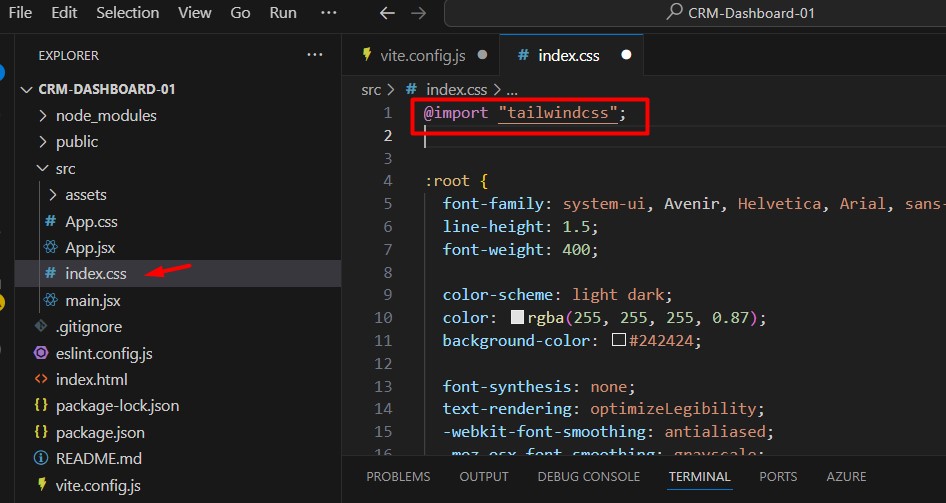
Step 13: Open the index.css file
Add @import “tailwindcss”;
Step 14: 💡 How to Confirm Tailwind Is Working -> Open App.jsx add Tailwind Css Style
ClassName=“text-blue-600” Sets the text color to a medium blue shade.
ClassName=“grid-cols-3” Defines 3 equal-width columns.
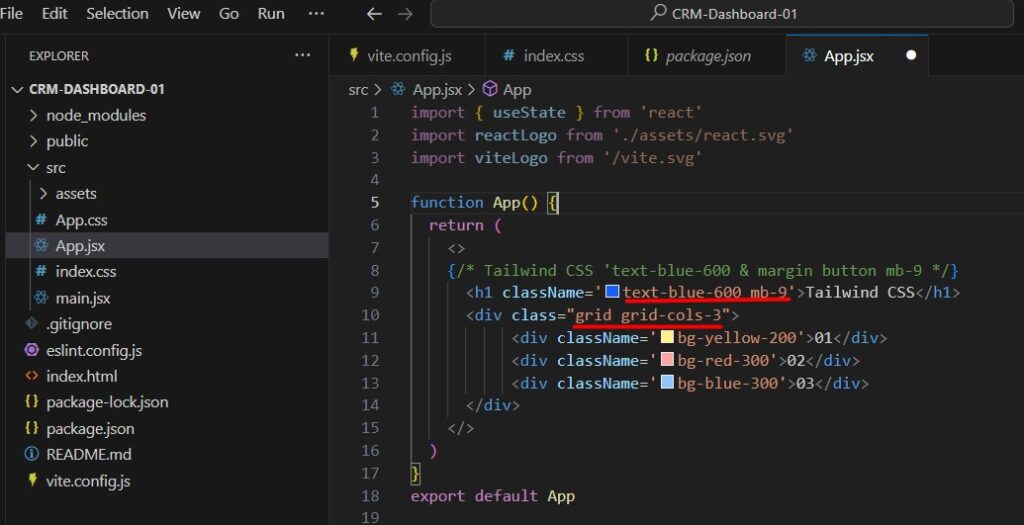
Step 15: Start the Development Server “npm run dev” & test tailwind css style
Tailwind CSS styles are working fine, as shown in the screenshot below.